

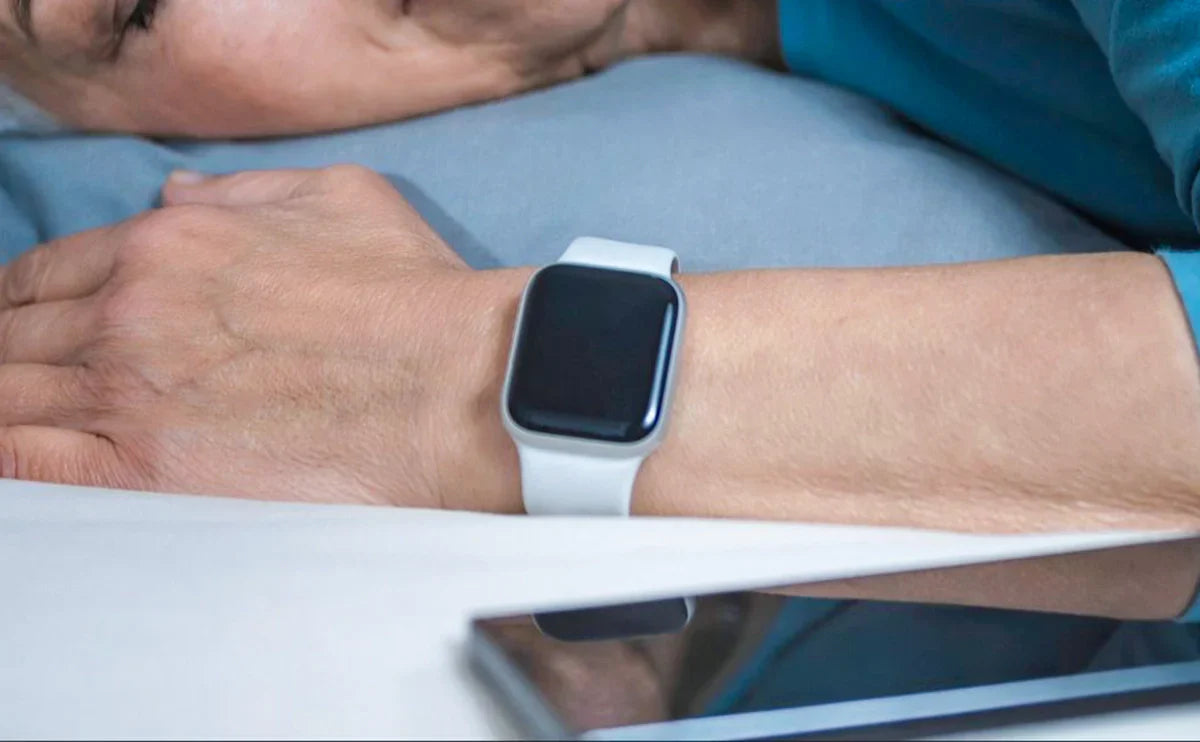
This guide explains how to track sleep on Apple Watch by enabling sleep tracking in the Health app and wearing the watch overnight. It also explains how Apple Watch estimates sleep stages and where to view sleep data in the Health app.
Main content:
- How to Track Sleep on Apple Watch
- How Apple Watch Tracks Your Sleep
- Requirements to Track Sleep on Apple Watch
- Step-by-Step: How to Set Up Sleep Tracking
- Do You Need a Sleep Schedule?
- How to View and Read Sleep Data
- How Vitals and Health Metrics Connect to Sleep
- Understanding Apple Watch Sleep Stages
- Tips to Improve Sleep Tracking Accuracy
- Troubleshooting: Sleep Tracking Not Working
- Native Sleep App vs Third-Party Apps
- Conclusion
- FAQs about How to Track Sleep on Apple Watch
If you're wondering how to track sleep on Apple Watch, the process is simple once the feature is enabled in the Health app. Apple Watch can automatically monitor sleep using motion data from its accelerometer together with heart rate signals, allowing it to estimate sleep stages such as REM, Core, and Deep sleep. These measurements help users understand their nightly rest and overall sleep habits.
However, many Apple Watch users are unsure where to turn on sleep tracking, whether a sleep schedule is required, or where to view their sleep data the next morning. These questions are common, especially for new Apple Watch owners.
In this guide, you'll learn how to track sleep on Apple Watch step by step, how the feature works, and how to read the sleep insights displayed in the Health app.
How to Track Sleep on Apple Watch
Sleep tracking works on Apple Watch Series 3 or later, including newer models such as Apple Watch Series 11, Apple Watch Series 10, and Apple Watch Series 9. To track sleep on Apple Watch, you need to enable sleep tracking in the Health app and wear your watch overnight. Once set up, the device can automatically monitor your sleep and estimate different sleep stages.
- Open the Health app on your iPhone
- Tap Browse, then select Sleep
- Turn on Track Sleep with Apple Watch
- Set a Sleep Schedule or manually enable Sleep Focus
- Wear your Apple Watch to bed to start tracking sleep
How Apple Watch Tracks Your Sleep
Apple Watch tracks sleep by analyzing movement and heart rate signals throughout the night. Using its built-in accelerometer, the watch detects body motion and periods of inactivity that typically indicate sleep. At the same time, its optical heart rate sensor measures changes in heart rate patterns. By combining these signals, Apple Watch can determine when you fall asleep and how your sleep changes during the night. According to Apple’s sleep research, these measurements allow the device to estimate different sleep stages using advanced algorithms.
Apple Watch categorizes sleep into several stages, including REM, Core, and Deep sleep. REM sleep is typically associated with dreaming and mental recovery, while Deep sleep supports physical restoration. Core sleep represents lighter sleep phases that make up the largest portion of the night.
To interpret these signals, Apple uses machine-learning models trained on large sleep datasets. These models analyze motion and heart rate patterns to estimate sleep stages and provide nightly insights in the Health app.
|
Sensor |
Purpose |
|
Accelerometer |
Detects body movement and inactivity |
|
Heart rate sensor |
Tracks heart rate changes during sleep |
|
Machine learning |
Estimates sleep stages based on sensor data |

Requirements to Track Sleep on Apple Watch
Before setting up sleep tracking, make sure your device and system meet the necessary requirements. Apple Watch sleep tracking works only when certain hardware, software, and settings are available.
To track sleep on Apple Watch, you need:
- Apple Watch Series 3 or later that supports the built-in Sleep app
- watchOS 7 or later to enable sleep tracking (sleep stages require watchOS 9 or later)
- An iPhone paired with the watch with the Health app installed
- Sleep tracking enabled by turning on “Track Sleep with Apple Watch” in the Health app
- Enough battery to last through the night, so the watch can record sleep data
- A properly fitted watch band to keep the sensors in contact with your wrist
If these requirements are met, Apple Watch can automatically collect motion and heart rate data during the night and display sleep insights in the Health app the next morning. Sleep tracking is supported on all compatible models, including newer premium devices like Apple Watch Ultra 3, which offer advanced health sensors and longer battery life for overnight monitoring.

Step-by-Step: How to Set Up Sleep Tracking
Setting up sleep tracking on Apple Watch takes only a few minutes. Apple allows you to enable the feature through either the Health app on your iPhone or directly on the Apple Watch Sleep app. Once configured, the watch can collect motion and heart rate data overnight and display sleep insights in the Health app the next day.
Method 1: Set Up Sleep Tracking on iPhone
The easiest way to enable sleep tracking is through the Health app on your paired iPhone.
- Open the Health app on your iPhone.
- Tap Browse at the bottom of the screen.
- Select Sleep from the list of health categories.
- Tap Get Started under the Sleep section.
- Set your Sleep Goal, which defines how many hours of sleep you want each night.
- Create a Sleep Schedule by choosing your bedtime and wake-up time.
- Turn on Track Sleep with Apple Watch so the watch can record sleep data.
- Optionally enable Sleep Focus to reduce notifications during your scheduled sleep time.
Method 2: Set Up Sleep Tracking on Apple Watch
You can also configure sleep tracking directly on your Apple Watch using the built-in Sleep app.
- Press the Digital Crown and open the Sleep app on your Apple Watch.
- Tap Full Schedule to create or adjust your sleep schedule.
- Set your bedtime and wake-up time for each day of the week.
- Review your settings and save the schedule.
- Wear your Apple Watch to bed to begin recording sleep data.
When sleep tracking is enabled and the watch is worn overnight, Apple Watch can analyze motion and heart rate patterns to estimate sleep duration and stages.

Do You Need a Sleep Schedule?
Many users wonder whether a Sleep Schedule is required for Apple Watch to track sleep. When Apple first introduced sleep tracking in watchOS 7, the feature was designed to work best with a schedule set in the Health app. The schedule defines your bedtime and wake-up time and can automatically activate Sleep Focus, which reduces notifications and helps Apple Watch identify your typical sleep period.
Today, a sleep schedule is still recommended, but it is not strictly required for Apple Watch to record sleep data. When sleep tracking is enabled and the watch is worn overnight, Apple Watch can analyze motion and heart rate patterns to estimate when you fall asleep and wake up.
Apple Watch may record sleep outside your scheduled sleep time if sleep tracking is enabled and the watch is worn overnight. However, shorter sleep sessions may only show total sleep time, while longer sessions are more likely to include detailed sleep stages such as REM, Core, and Deep sleep.
|
Situation |
Will Apple Watch Track Sleep? |
|
Sleep Schedule enabled |
Yes |
|
Sleep Focus active |
Yes |
|
Sleep outside schedule |
Sometimes |
|
Short naps |
May record sleep duration only |
How to View and Read Sleep Data
Apple Watch sleep data can be viewed in the Health app on iPhone. After setting up sleep tracking, you can view your sleep information in the Health app on your iPhone. Apple Watch syncs sleep data with the Health app, where it is displayed in charts and summaries that help you review your nightly rest.
To see your sleep data, open the Health app, tap Browse, and select Sleep. The Sleep section shows your total sleep time, estimated sleep stages, and long-term sleep trends. You can view results for individual nights or review weekly and monthly averages to understand your sleep habits over time.
Apple Watch sleep tracking typically includes three main types of information: sleep duration, sleep stages, and sleep trends. Together, these insights help users understand both how long they sleep and how their sleep patterns change over time.
|
Data Type |
What It Shows |
|
Sleep duration |
Total time spent asleep during the night |
|
Sleep stages |
Estimated stages such as REM, Core, and Deep sleep |
|
Sleep trends |
Sleep patterns and averages over time |
How Vitals and Health Metrics Connect to Sleep
In addition to sleep duration and stages, Apple Watch can collect several health metrics during sleep. These measurements appear in the Health app and help provide a broader view of your nightly recovery.
During sleep, Apple Watch may track indicators such as respiratory rate, wrist temperature, and heart rate patterns. Changes in these measurements can reflect shifts in recovery, stress levels, or overall sleep quality.
For example, respiratory rate measures how many breaths you take per minute while sleeping. Wrist temperature reflects changes in body temperature during rest, and heart rate patterns provide insight into how your body recovers overnight.
|
Vital Sign |
Why It Matters |
|
Respiratory rate |
Shows breathing patterns during sleep |
|
Wrist temperature |
Indicates physiological changes during rest |
|
Heart rate patterns |
Reflects overnight recovery and rest |
Together with sleep stage estimates, these metrics provide a more complete picture of sleep and overall health.
Understanding Apple Watch Sleep Stages
Apple Watch estimates sleep stages using motion data from the accelerometer together with heart rate signals collected during the night. Apple’s algorithms analyze these signals to estimate how the body moves through different stages of sleep.
The Health app displays four stages of sleep: Awake, REM, Core, and Deep sleep. Each stage represents a different level of rest and recovery during the night.
|
Stage |
Meaning |
|
Awake |
Periods when you are awake during the night |
|
REM |
Dream-related sleep associated with mental recovery |
|
Core |
Lighter sleep that makes up the largest portion of the night |
|
Deep |
Restorative sleep that supports physical recovery |
Many users are unfamiliar with Core sleep. Apple uses this term to describe lighter sleep stages that occur between REM and Deep sleep. Although other sleep trackers often call this “light sleep,” Core sleep still plays an important role in maintaining a healthy sleep cycle.

Tips to Improve Sleep Tracking Accuracy
To get the most reliable sleep data from your Apple Watch, it’s important to follow a few best practices. Because sleep tracking relies on motion and heart rate signals, proper device usage can improve the accuracy of the results shown in the Health app.
Here are several tips to help improve sleep tracking accuracy:
- Wear the watch snugly on your wrist. The sensors need consistent skin contact to measure heart rate correctly.
- Keep the sensors clean. Dirt, sweat, or lotion can interfere with the optical heart rate sensor.
- Maintain consistent sleep habits. Going to bed at similar times helps Apple Watch recognize your sleep patterns more easily.
- Charge the watch before bedtime. Make sure the battery has enough power to last through the night.
- Enable Sleep Focus when possible. This reduces notifications and helps the watch identify sleep periods.
Band Fit Matters
A properly fitted watch band also affects sleep tracking accuracy. If the band is too loose, the sensors may lose contact with your skin, which can reduce the quality of heart rate readings. Wearing the watch comfortably but securely helps ensure more reliable sleep measurements. Many users also choose comfortable Apple Watch Bands designed for overnight wear, as they can improve sensor contact and make the watch more comfortable to wear throughout the night.

Troubleshooting: Sleep Tracking Not Working
If your Apple Watch did not record sleep data, there are several common reasons. Most sleep tracking issues can be solved by checking your settings or making small adjustments to how the watch is worn.
|
Problem |
Solution |
|
Sleep not recorded |
Make sure Track Sleep with Apple Watch is enabled in the Health app |
|
Watch battery ran out overnight |
Charge the watch before going to bed |
|
Watch band too loose |
Tighten the band so the sensors stay in contact with your skin |
|
Sleep Focus not enabled during scheduled sleep |
Turn on Sleep Focus or set a Sleep Schedule |
|
Apple Watch not worn overnight |
Wear the watch while sleeping so it can collect motion and heart rate data |
If sleep tracking still does not work, check that your Apple Watch and iPhone are updated to the latest versions of watchOS and iOS.
Native Sleep App vs Third-Party Apps
Apple Watch includes a built-in Sleep app that works seamlessly with the Health app on iPhone. For many users, the native sleep tracking feature provides enough information to understand sleep duration and estimated sleep stages.
However, some users prefer third-party sleep tracking apps that offer more detailed analytics, customized insights, or additional sleep metrics. These apps can integrate with Apple Health and expand the information available about your sleep patterns.
|
App |
Features |
|
Apple Sleep |
Built-in sleep tracking integrated with the Health app |
|
AutoSleep |
Detailed sleep analysis and automatic detection |
|
Sleep++ |
Simple interface and customizable sleep reports |
|
Pillow |
Sleep insights, trends, and optional sound recording |
While third-party apps can provide additional analysis, Apple’s built-in Sleep tracking is designed to work efficiently with the watch’s sensors and the Health ecosystem.
Conclusion
Apple Watch makes it easy to track sleep and understand your nightly rest. By enabling sleep tracking in the Health app and wearing your watch overnight, you can monitor sleep duration, estimated sleep stages, and related health metrics.
Because the feature is built directly into the Apple Health ecosystem, sleep data automatically syncs with your iPhone and provides clear insights into sleep patterns over time. With simple setup, seamless integration, and useful health insights, Apple Watch sleep tracking can help users better understand and improve their overall sleep habits.
FAQs about How to Track Sleep on Apple Watch
Does Apple Watch track sleep automatically?
Yes. Apple Watch can track sleep when sleep tracking is enabled and the watch is worn overnight. It uses motion data from the accelerometer and heart rate signals to estimate when you fall asleep and wake up.
Can Apple Watch track naps?
Yes, Apple Watch may record sleep outside your scheduled bedtime, including naps. Short sleep sessions may only show total sleep time, while longer sleep periods can include sleep stages such as REM, Core, and Deep.
Why didn’t my Apple Watch record sleep?
Apple Watch may not record sleep if sleep tracking is turned off, the battery runs out overnight, or the watch is not worn during sleep. A loose watch band can also affect sensor readings and prevent accurate tracking.
Is Apple Watch sleep tracking accurate?
Apple Watch sleep tracking is designed to estimate sleep stages using motion and heart rate data. While it is not a medical sleep study, it can provide useful insights into overall sleep patterns and habits.
Where can I see my sleep data on Apple Watch?
You can see sleep data in the Health app on your iPhone. Open the Health app, tap Browse, then select Sleep to view sleep duration, sleep stages, and sleep trends.
What Apple Watch models support sleep tracking?
Sleep tracking is available on Apple Watch Series 3 or later with watchOS 7 or newer. Detailed sleep stages such as REM, Core, and Deep require watchOS 9 or later.
Share:
12 Best Garmin Watches for Women in 2026 - Top Picks for Fitness, Running & Everyday Wear
Coros Pace 4 vs Garmin Forerunner 265 - Which Is Better for Marathon Training?